For GSPro at 1080p, you need at minimum an Intel i5, 16GB RAM, an Nvidia RTX 3060, and a 1TB NVMe SSD. For comfortable 4K gameplay, step up to an i7, 32GB RAM, and an RTX 4070 or better. A pre-built gaming PC meeting the 1080p spec runs $900-$1,200 in early 2026. A 4K-capable build runs $1,800-$2,500. That’s the full answer for 90% of home simulator buyers.
The GPU is the component that matters most and the one most builders underspend on. GSPro, E6 Connect, and TGC 2019 are all GPU-intensive applications that render detailed course environments in real time. An underpowered graphics card means stuttering, dropped frames, and slow course loading – the kind of friction that makes you stop using the sim. This guide breaks down what each software platform actually requires and which components to prioritize at every budget level.
The quick spec guide: Budget 1080p build: Intel i5, 16GB RAM, RTX 3060, 1TB NVMe SSD ($900-$1,200). Mid-tier 1080p Ultra: Intel i7, 16GB RAM, RTX 3060 Ti or RTX 4060, 1TB NVMe SSD ($1,200-$1,600). Full 4K Ultra: Intel i7/i9, 32GB DDR5, RTX 4070 Ti or RTX 5070, 2TB NVMe SSD ($1,800-$2,500). Windows 10 or 11 only. No Mac. No Chromebook.
The GPU is everything (spend your budget here first)
The graphics card determines whether your simulator looks good and runs smoothly, or stutters through every course change. GSPro is far more GPU-intensive than CPU-intensive, which means your GPU choice matters more than your processor choice by a significant margin.
For 1080p gameplay: the Nvidia RTX 3060 is the functional minimum that produces a genuinely enjoyable experience. Anything below this (GTX 1660, GTX 1650) technically runs GSPro but with noticeable frame drops on detailed courses and compromised graphics quality. The RTX 3060 Ti is the sweet spot for smooth 1080p Ultra at a modest price bump.
For 4K gameplay: the RTX 4070 is the entry point where 4K becomes genuinely playable, though you’ll need to pull back from Ultra settings on demanding GSPro courses. The RTX 4070 Ti or the newer RTX 5070 run GSPro at maxed 4K Ultra settings with stable 60+ FPS. If you’re projecting onto a 130-inch screen at 4K resolution, build the PC to match from the start rather than hoping a 1080p-tier GPU can handle it.
For premium builds running Trackman software alongside GSPro, swing cameras, or OBS recording: the RTX 5080 or RTX 4080 handles everything simultaneously without compromise. Trackman specifically requires an RTX 4070 Ti or better for their HD resolution mode, which is a higher GPU floor than any other simulator platform.
Critical AMD warning: AMD GPUs do not work with FSX Play (Foresight’s software), Trackman software, or Uneekor Refine. AMD processors are also unsupported in FSX Play and Trackman. If there’s any chance you’ll use these platforms, build with Nvidia GPU and Intel CPU. This eliminates compatibility issues across every major simulator platform without restriction.
Requirements by software platform
GSPro: the community standard
GSPro runs on Windows only (Windows 10 or 11, 64-bit). No Mac, no iPad, no Chromebook. It requires a dedicated Nvidia GPU – integrated graphics will not work. The official minimum spec for 1080p play calls for an RTX 3060 with 8GB VRAM, an Intel i5 or AMD Ryzen 5, 16GB RAM, and 10GB of storage.
In practice, the recommended spec for smooth 1080p Ultra is an RTX 3060 Ti, an i7, 16GB RAM, and a 1TB NVMe SSD. Each downloaded GSPro course is roughly 500MB-1GB, and with 2,000+ community courses available, storage needs grow fast. A 1TB drive holds the base installation plus 200-300 courses comfortably.
For 4K Ultra, GSPro recommends an i7 or i9, 32GB RAM, and an RTX 4070 or better. This is the spec I recommend for any client projecting onto a screen wider than 10 feet, where 4K vs 1080p produces a visible image quality difference at normal viewing distance.
E6 Connect: lighter requirements
E6 Connect runs on an older engine and has more modest hardware demands. Official minimum: Intel i5, 8GB RAM (16GB recommended), Nvidia GTX 1070 or better with DirectX 11 support, 25GB storage. For smooth 1080p gameplay at 60+ FPS, the community consensus puts the comfortable target at an RTX 3060 and an i7.
E6 Connect also runs on iPad (newer models with M1/M2 chips), which eliminates the PC entirely for casual use. The iPad experience is surprisingly good for recreational play, though the frame rates and resolution don’t match a dedicated gaming PC.
TGC 2019: moderate demands
TGC 2019 is less demanding than GSPro but still requires a dedicated GPU for smooth 4K gameplay. An RTX 3060 handles it comfortably at 1080p. An RTX 3060 Ti or RTX 4060 runs 4K without issue. The massive user-created course library (100,000+ courses) means storage is the main concern – budget 2TB if you download extensively.
Trackman and Foresight: higher floors
Trackman software requires an RTX 4070 Ti or better for HD resolution mode, 32GB RAM, and a 1TB NVMe SSD as a hard minimum. This is a meaningfully higher spec floor than GSPro or E6. Foresight’s FSX Play requires an Nvidia GPU specifically (no AMD) and an Intel processor. If you’re running either platform, spec the PC to Trackman’s requirements and everything else runs fine by default.
The compatibility shortcut: Build with an Nvidia GPU and Intel CPU and you’re compatible with every major golf simulator platform – GSPro, E6 Connect, TGC 2019, FSX Play, Trackman, and Uneekor Refine. AMD processors or GPUs lock you out of Foresight and Trackman software entirely.
Three builds at three budgets (copy these specs)
Budget build: $900-$1,200 (smooth 1080p)
This is the minimum spec I’d recommend for a home simulator that runs GSPro without frustration. Intel Core i5-12400F or i5-13400F, 16GB DDR4 3200MHz, Nvidia RTX 3060 12GB, 1TB NVMe SSD, 600W PSU, Windows 11. Pre-built options at this spec include the Skytech Blaze and similar mid-range gaming PCs readily available online.
This build runs GSPro at 1080p with settings at High to Ultra, E6 Connect at max settings, and TGC 2019 without any issues. It handles the launch monitor software (SkyTrak, Bushnell, Garmin) running simultaneously in the background. If you’re projecting at 1080p resolution, this is all you need.
Mid-tier build: $1,400-$1,800 (1080p Ultra / entry 4K)
Intel Core i7-13700F or i7-14700F, 16GB DDR5 5600MHz, Nvidia RTX 4060 Ti 8GB, 1TB NVMe SSD, 750W PSU, Windows 11. This build runs GSPro at 1080p Ultra with stable 60+ FPS on every course, and handles entry-level 4K with settings pulled back slightly.
For builders who are currently projecting at 1080p but plan to upgrade to a 4K projector within 2-3 years, this is the right build. It has headroom for the upgrade without requiring a new GPU when the projector changes.
Premium build: $2,000-$2,500 (full 4K Ultra)
Intel Core i7-14700KF or Core Ultra 7 265F, 32GB DDR5 6000MHz, Nvidia RTX 4070 Ti Super 16GB or RTX 5070, 2TB NVMe SSD, 850W PSU, Windows 11. This build runs GSPro at maxed 4K Ultra with stable 60+ FPS, handles Trackman HD software requirements, supports swing camera recording and OBS streaming simultaneously, and won’t need an upgrade for 4-5 years.
Pre-built options at this tier include the SurfThing SG3 series (specifically designed for golf simulators) and comparable builds from Origin PC and CyberPowerPC. The SurfThing SG3-5802 with an RTX 5080 has been well-reviewed in the simulator community for delivering stable 4K performance across every platform.
Desktop vs. laptop: the easy answer
For a dedicated home simulator, desktop wins on every metric that matters: better GPU performance per dollar, easier upgrades, better cooling, and longer lifespan. A desktop RTX 4070 outperforms a laptop RTX 4070 by 15-25% because the desktop card has better thermal headroom and higher power delivery.
Laptops make sense in exactly one scenario: you need the computer to serve double duty as a work machine or portable device, and you’re unwilling to buy a dedicated desktop. If you go laptop, buy one tier higher on the GPU than the desktop equivalent. GSPro recommends an RTX 3070 or 3070 Ti in a laptop to match the performance of a desktop RTX 3060 Ti.
Never use a MacBook. GSPro is Windows-only. E6 Connect has an iPad app but no native Mac support. TGC 2019 is Windows-only. Trackman is Windows-only. There is no viable path to running a golf simulator on macOS in 2026. If you own a Mac and want a sim, you need a separate Windows PC.
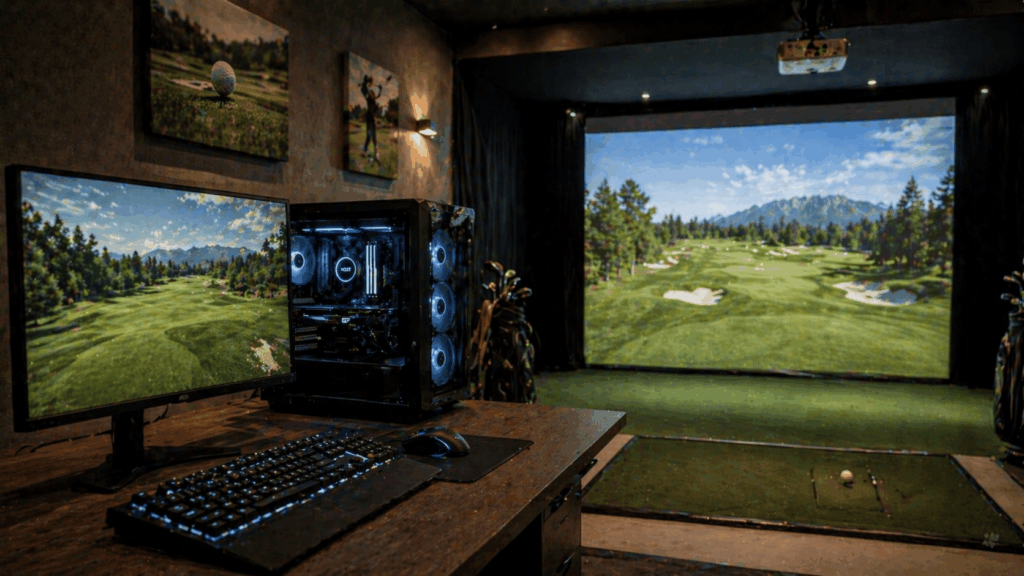
The components most builders get wrong
RAM: 16GB is the floor, not the target
8GB technically meets the minimum for E6 Connect but leaves zero headroom for the launch monitor software running simultaneously. 16GB is the real floor for any build. 32GB is the practical standard for 2026 if you’re running swing cameras, launch monitor apps, and GSPro concurrently. DDR5 at 5600-6000MHz is the current standard for new builds and offers slightly faster course load times than DDR4.
Storage: NVMe SSD is non-negotiable
Course loading times from a spinning hard drive can be seven times longer than from an NVMe SSD. Trackman requires a 1TB SSD as a hard minimum specification. There is no reason to put an HDD in a 2026 simulator build. Budget 1TB minimum, 2TB if you download extensively from GSPro’s community course library.
Connectivity: check your launch monitor’s requirements
Different launch monitors connect differently. The Garmin R10 requires Bluetooth. SkyTrak connects via WiFi or USB. Foresight units need specific software (FSX Play) running alongside your sim software. Ethernet is always more stable than WiFi for any launch monitor that supports it. Verify your launch monitor’s connection method before buying the PC – a missing Bluetooth adapter or Ethernet port creates unnecessary hassle.
The most common PC mistake I see in client builds: buying a $700 gaming PC with an RTX 3050 to “save money,” then upgrading to an RTX 4060 six months later because GSPro stuttered on every course change. They spent $700 + $350 for the GPU upgrade + 2 hours of their time swapping the card. If they’d bought the $1,100 PC with the RTX 3060 Ti from day one, they’d have saved $150 and the hassle. Buy the right spec once.
Can you skip the PC entirely?
Some launch monitors run on iPad or tablet without a PC, which eliminates this entire cost category from your build. The Garmin R10 and R50, Rapsodo MLM2PRO, and FlightScope Mevo all work with iPad apps. E6 Connect has a full iPad version that runs on newer iPads with M1/M2 chips.
The trade-off: no GSPro. GSPro is Windows-only, period. If you want GSPro’s 2,000+ community courses and the Sim Golf Tour, you need a Windows PC. If you’re happy with E6 Connect on iPad or the Garmin app, you can skip the PC entirely and save $900-$2,500.
The Garmin R50 ($5,000) has a built-in 10-inch screen that runs its own simulator software without any external device at all. It’s the only self-contained launch monitor that acts as its own computer and display. Expensive, but it eliminates the PC, the tablet, and the connection hassle in one purchase.
Frequently asked questions
What are the minimum PC specs for GSPro?
GSPro’s official minimum for 1080p: Windows 10/11, Intel i5 or AMD Ryzen 5, 16GB RAM, Nvidia RTX 3060, 10GB storage. For smooth 1080p Ultra, step up to an i7 and RTX 3060 Ti. For 4K Ultra, you need an i7/i9, 32GB RAM, and an RTX 4070 or better. GSPro is Windows-only with no Mac or mobile support.
Do I need a gaming PC for a golf simulator?
If you want to run GSPro, TGC 2019, or Trackman software, yes – you need a dedicated Windows gaming PC with a capable Nvidia GPU. If you’re running E6 Connect on iPad or using a Garmin R10/R50 with their native apps, you can skip the PC entirely. The gaming PC is specifically required for GPU-intensive simulator software.
Can I use an AMD GPU for my golf simulator?
For GSPro and E6 Connect, AMD GPUs technically work but are less tested. For FSX Play (Foresight), Trackman, and Uneekor Refine, AMD GPUs are not supported. To avoid any compatibility issues, build with Nvidia. It’s the only GPU brand that works across every simulator platform without exception.
How much does a golf simulator PC cost?
A functional 1080p build runs $900-$1,200 pre-built. A smooth 1080p Ultra / entry 4K build runs $1,400-$1,800. A full 4K Ultra build runs $2,000-$2,500. These are pre-built prices from major gaming PC retailers. Building from components saves roughly $100-$200 but requires assembly knowledge.
Should I build or buy a pre-built PC for my simulator?
For most simulator owners, a pre-built gaming PC is the right choice. You get a warranty, tested components, and zero assembly risk. The $100-$200 savings from a self-built PC don’t justify the troubleshooting time if something doesn’t work. Simulator-specific pre-builds from SurfThing and similar companies come pre-optimized for GSPro, which saves setup hassle.
Can I use a laptop for a golf simulator?
Yes, but buy one GPU tier higher than the desktop equivalent. A laptop RTX 4070 performs roughly like a desktop RTX 4060 due to thermal and power constraints. GSPro themselves note that desktop configurations offer better value. Laptops make sense only if the computer must serve dual purposes.
In summary: GPU first, everything else second
The golf simulator computer decision comes down to one question: what resolution are you projecting at? If 1080p, an RTX 3060 Ti build at $1,100-$1,400 handles everything. If 4K, an RTX 4070 Ti build at $2,000-$2,500 handles everything. Everything else (CPU, RAM, storage) supports the GPU rather than driving the experience.
Build with Nvidia GPU and Intel CPU to guarantee compatibility across every simulator platform. Buy a 1TB NVMe SSD minimum. Get 16GB RAM at minimum, 32GB if you’re doing anything beyond basic GSPro play. And buy the right spec the first time rather than upgrading in six months – the “save now, upgrade later” approach always costs more total.
One detail most PC guides miss: cable length matters in a simulator room. The PC typically sits 15-25 feet from the projector, and standard HDMI cables degrade signal quality past 15 feet at 4K resolution. Budget $30-$60 for an active HDMI cable or fiber optic HDMI cable rated for 4K at the length you need. A $1,800 PC paired with a $5 Amazon HDMI cable produces a blurry, flickering 4K image – and most builders blame the projector when the cable is the actual problem.
The HDMI cable issue comes up in roughly one out of every four builds I consult on. The golfer has a $2,000 PC, a $1,500 projector, and a $3 HDMI cable from a junk drawer. The image flickers, drops to 1080p randomly, or shows artifacts. They’re convinced the projector is broken. It’s the cable. Every single time. Buy an active or fiber optic HDMI cable rated for your resolution and length. It’s the cheapest component in the build and the one that causes the most troubleshooting.